Kiosk screens are used at shared stations such as classrooms, the library, the office, the nurse, or counseling spaces. A kiosk may serve as an origin, a destination check-in point, or both.
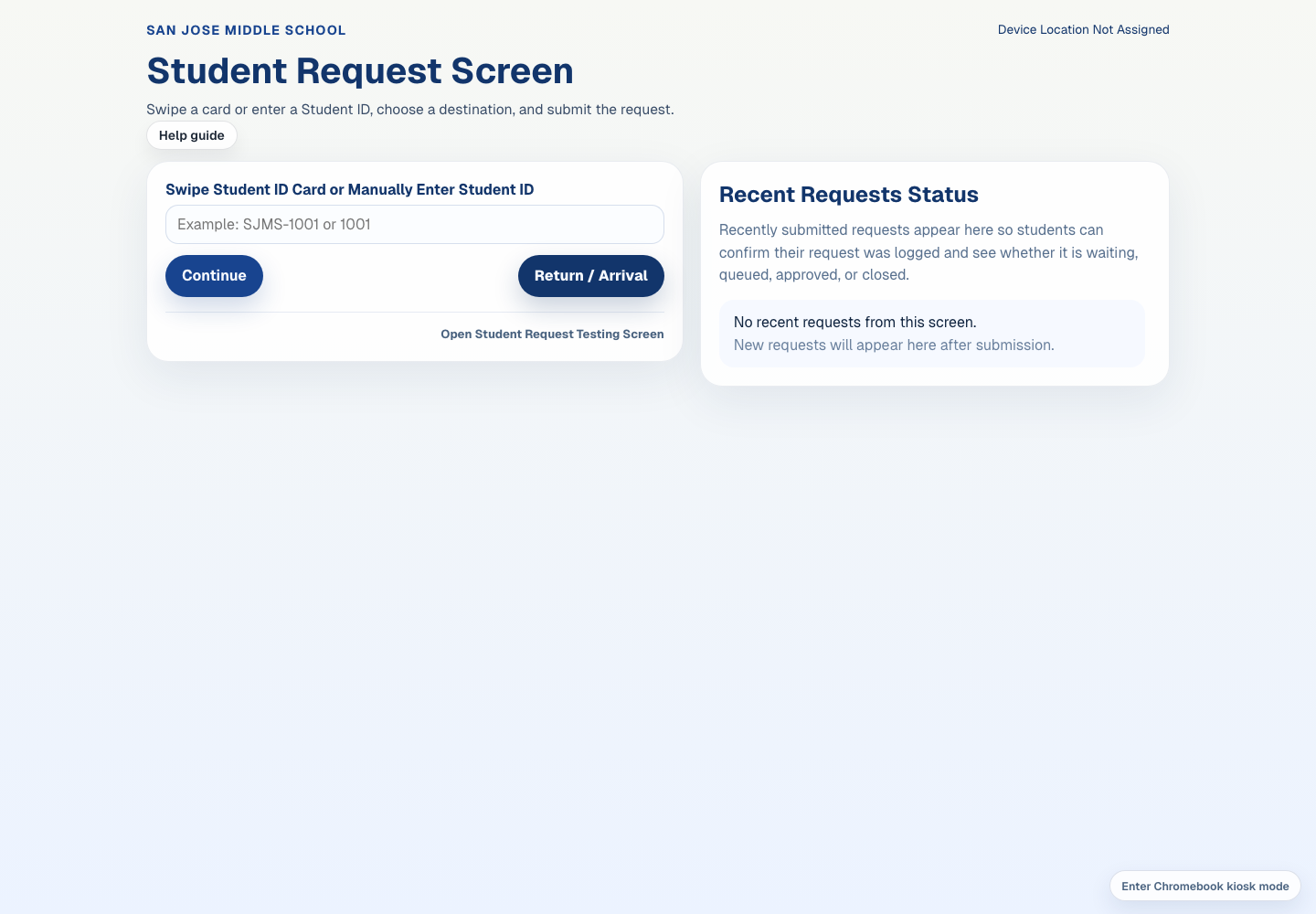
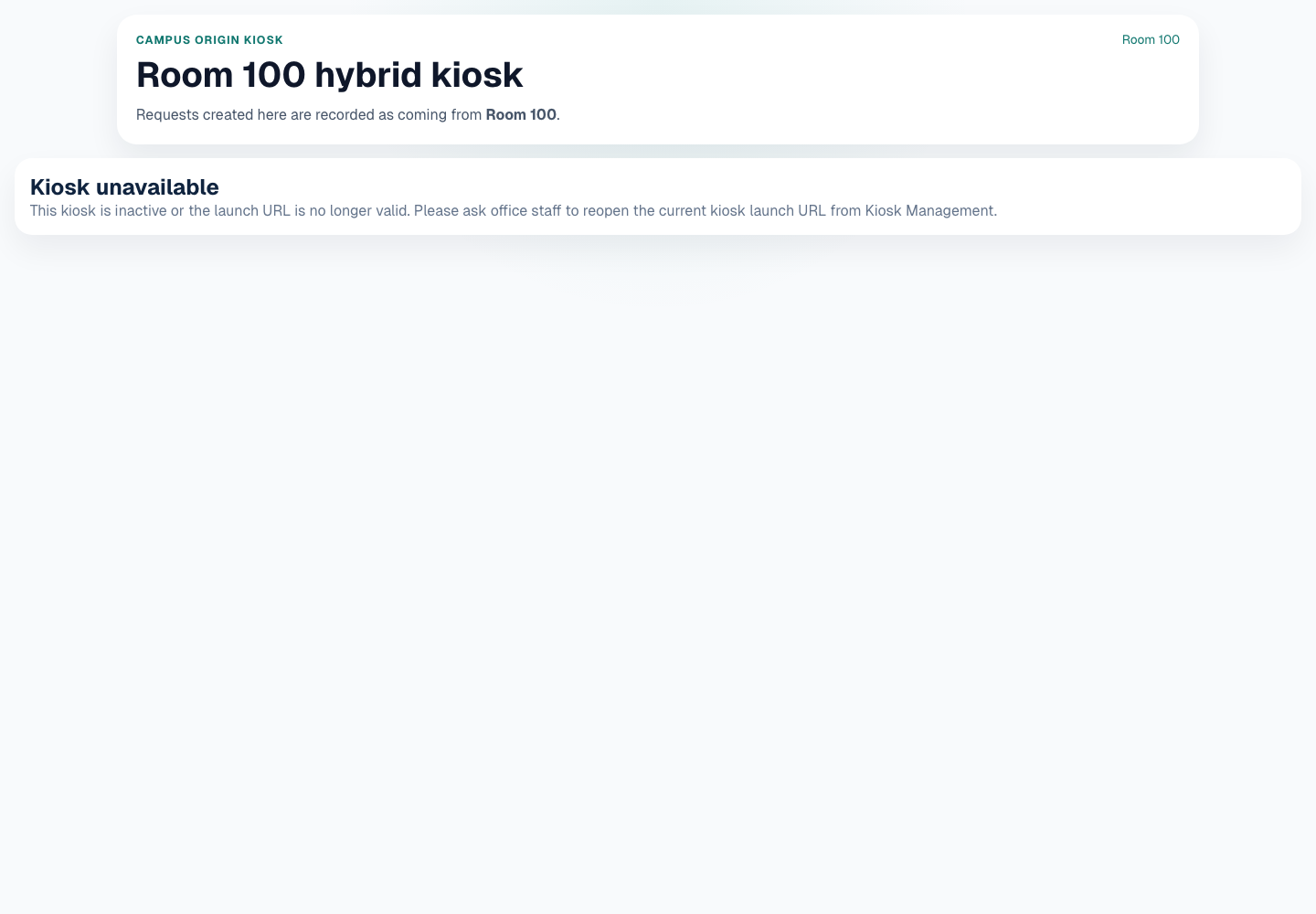
Student Request Entry: Use this screen to scan or enter Student ID while the Recent Requests Status panel confirms recent submissions.Origin Kiosk: Use this screen when a room or shared kiosk starts a student location-change request.
Students and supervised self-service
Student Request Screen
/student/request
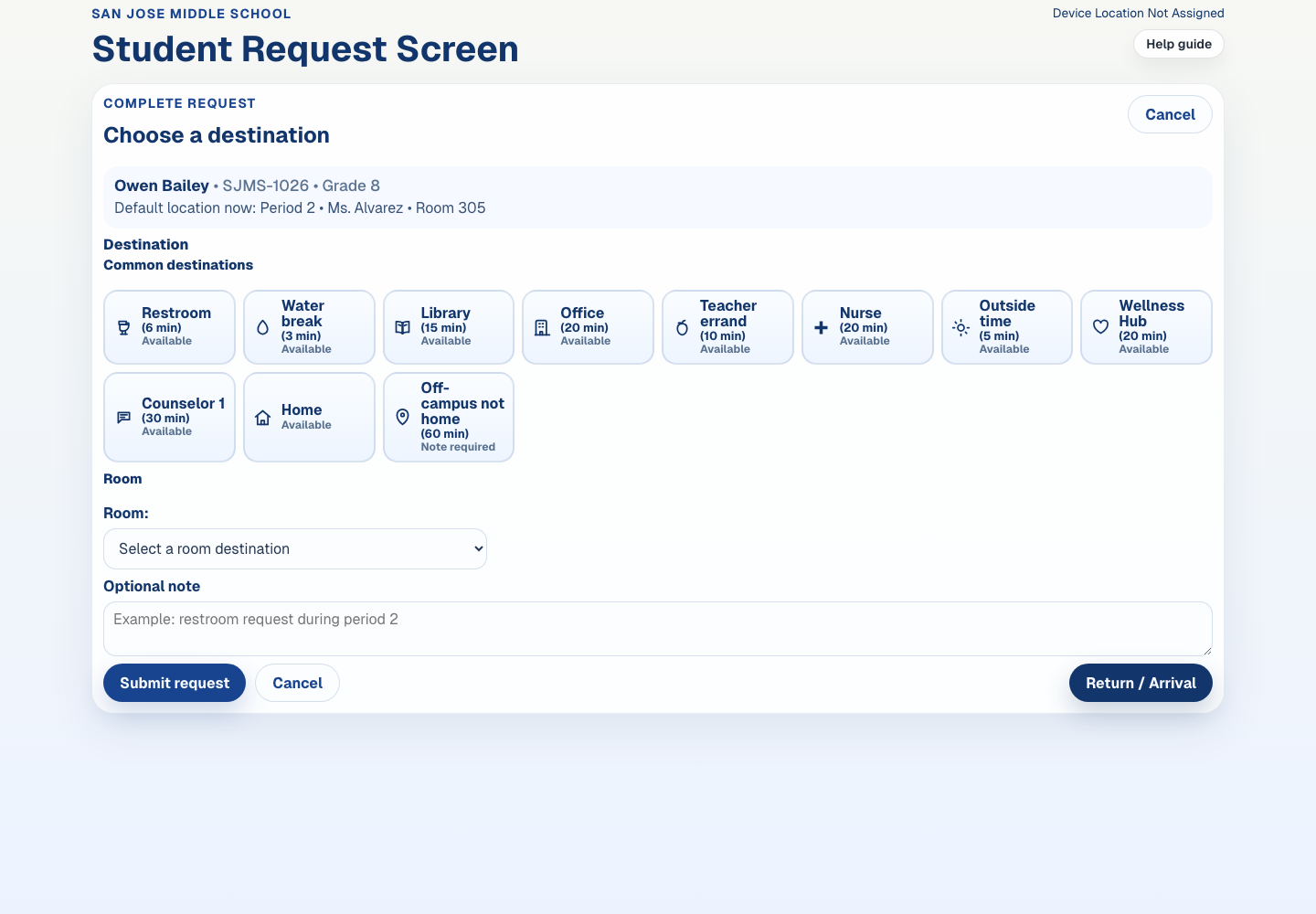
Use this page to enter or scan a Student ID, choose a destination, and submit a location-change request or record.
Student Request Screen
Main actions
Enter or scan the Student ID.
Confirm that the matched student is correct.
Choose a common destination or use the Room dropdown for classroom destinations.
Add a note when useful or when the selected destination requires one.
Submit the request and confirm the screen returns to the Student ID entry state.
Use the Recent Requests Status panel to confirm the request was logged and whether it is waiting, queued, approved, or closed.
What to watch for
Students should not search by name here.
If a student does not have a card, they may type Student ID manually.
If a student does not know Student ID, the student should ask a teacher or staff member for help.
A student may request a service location, shared campus location, or classroom destination when that destination is enabled by campus policy.
Room destination labels may include teacher names when class assignments are available.
Emergency mode, no-fly windows, cooldowns, frequency limits, or restricted-combination rules may block new requests.
See the full Student Mobility Manager help guide for role-specific workflows and setup notes.
Students using shared kiosks
Return / Arrival
/student/return-arrival
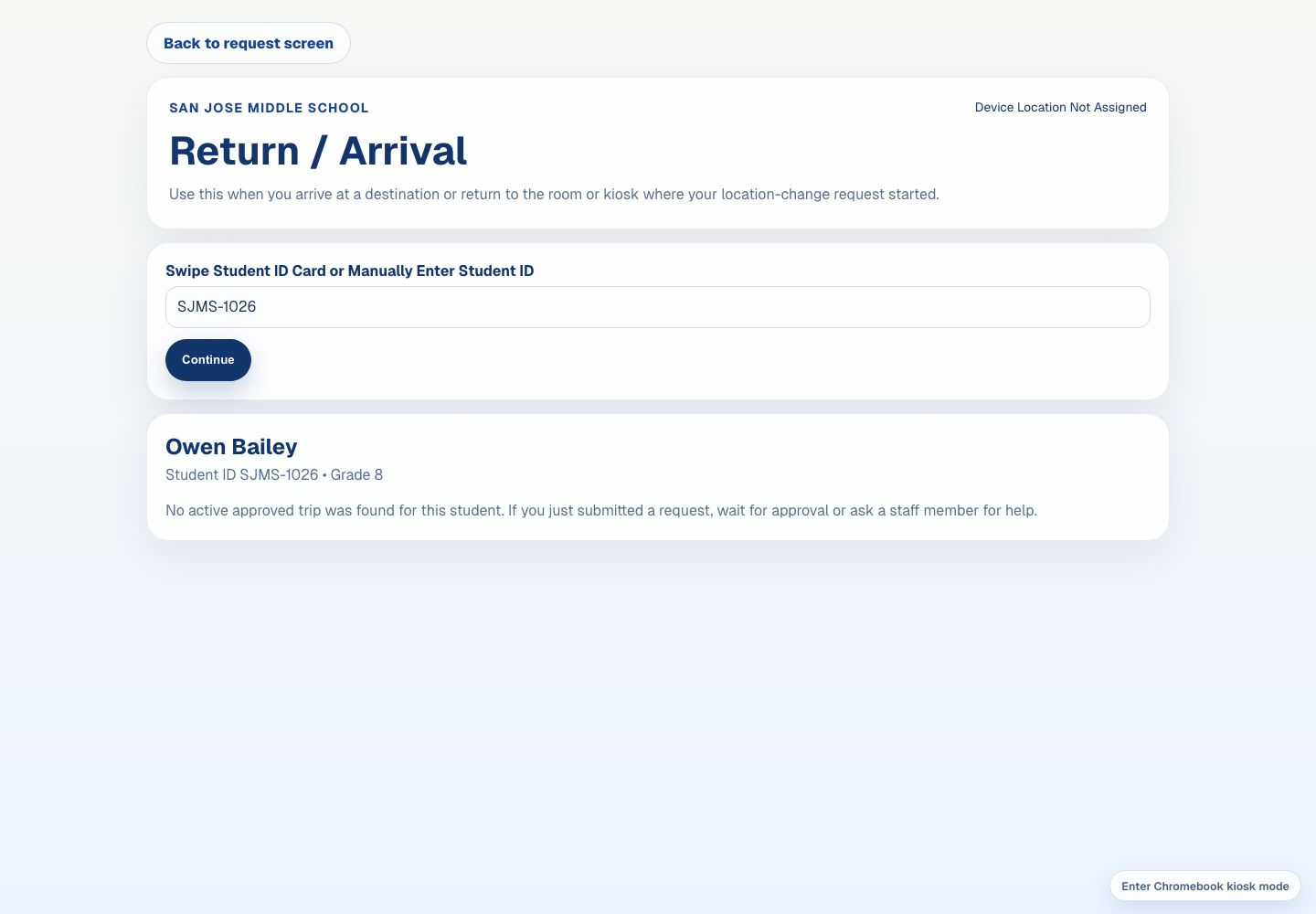
Use this screen when a student arrives at a destination that requires check-in or returns to the kiosk/location where the trip began.
Return / Arrival
Main actions
Enter or scan the Student ID.
Review any active request shown for that student.
Record arrival when the student has reached a destination that requires arrival check-in.
Record return when the student is back at the origin kiosk or room.
What to watch for
A kiosk must represent the correct room or service location for return/arrival records to be meaningful.
If no active request appears, staff should confirm whether the pass was already completed or was submitted from another location.
Return check-in and arrival check-in are separate events and may be required differently by destination.
The full guide explains how destination and origin kiosks support the check-in workflow.
Stakeholder testing and demonstrations
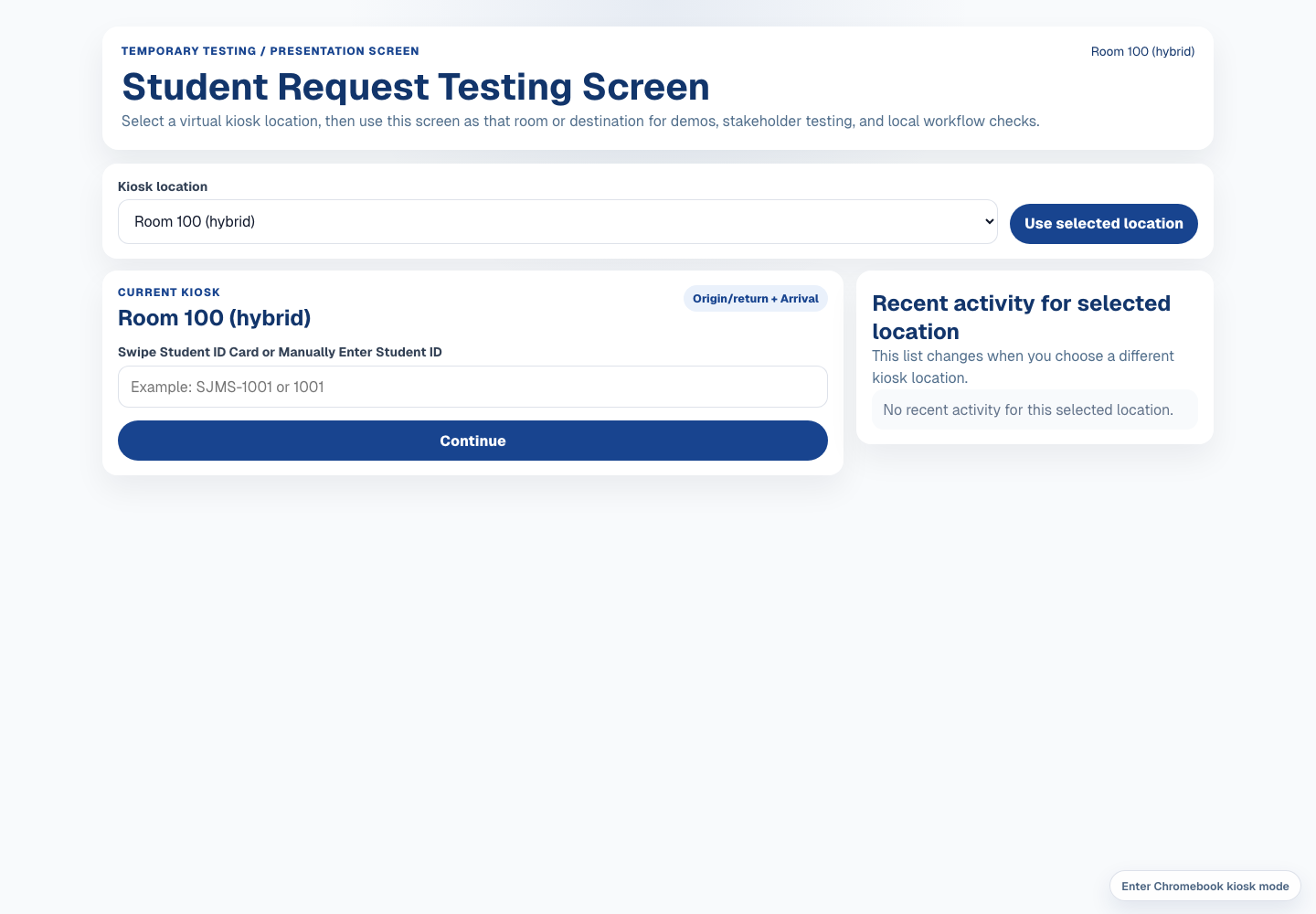
Student Request Testing Screen
/student/request/presentation-kiosk
Use this temporary testing screen to select a virtual kiosk location and test how one shared request screen behaves as different classroom or service-location kiosks.
Student Request Testing Screen
Main actions
Choose the kiosk location from the compact selector.
Open it from the temporary link at the bottom of the ordinary Student Request Screen, or use the direct route /student/request/presentation-kiosk.
Enter or scan a Student ID.
Submit a request, record arrival, or record return from that selected kiosk context.
What to watch for
This page is intended for testing and stakeholder demonstrations, not final production placement.
The selected kiosk context controls which origin or destination is recorded.
Changing the virtual kiosk location lets testers compare classroom, office, library, nurse, and other location workflows without moving devices.
Most classroom and service-location kiosks should be hybrid so they can act as both origin and destination.
The full guide distinguishes this flexible testing screen from permanent kiosk launch URLs.
Teachers
Teacher Dashboard
/teacher/dashboard
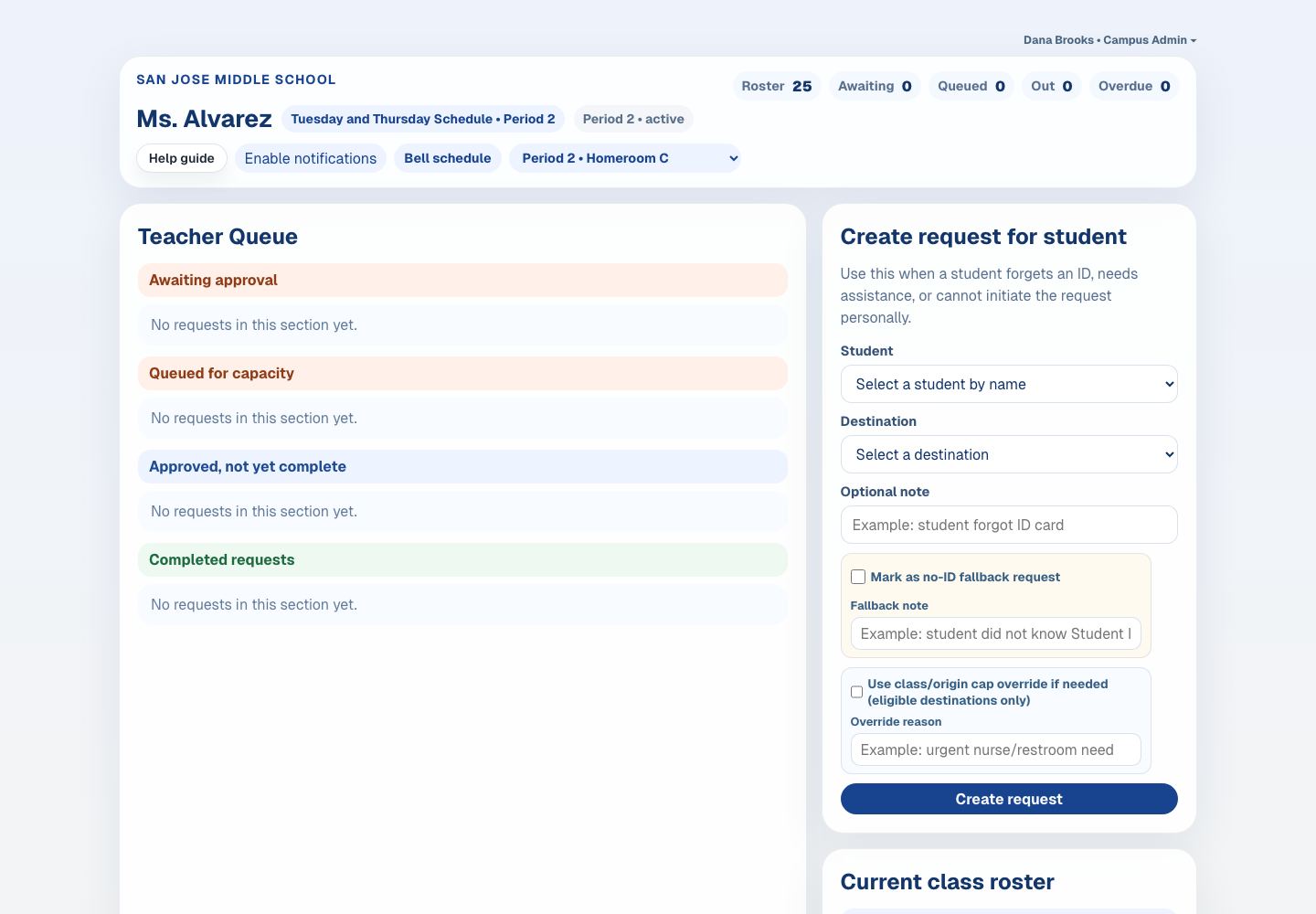
Use this page to review the active class, work the Teacher Queue, and create requests on behalf of students when needed.
Teacher Dashboard
Main actions
Review the compact schedule and class-period controls at the top.
Approve, deny, acknowledge, or resolve requests in the Teacher Queue.
Clear prior-date queued or pending requests assigned to the teacher when they are no longer valid.
Clear prior-date active passes assigned to the teacher when the pass was left open from a previous date.
Use the auto-refresh and optional browser notification control to notice new requests without watching a kiosk.
Create a request for a student when the student cannot self-submit.
Mark no-ID fallback requests when a student has no card and does not know Student ID.
Check the current class roster and student identifiers.
What to watch for
If there is no active bell period, use the class-period buttons to choose the roster manually.
Queued requests may be waiting for destination capacity to open.
Teacher stale clears are labeled Cleared without approval and retain the request record.
Teacher stale active-pass clears are labeled Cleared without return and retain the request record.
Browser notifications require permission on the teacher's device and should be treated as optional, not mandatory.
Overdue alerts and manual-view context should be visible before scrolling.
No-ID fallback requests are marked in staff queue notes and audit context.
The full guide includes teacher-specific fallback behavior, queue notes, and pilot usage expectations.
Front office staff and campus administrators
Office / Admin Queue
/office/dashboard
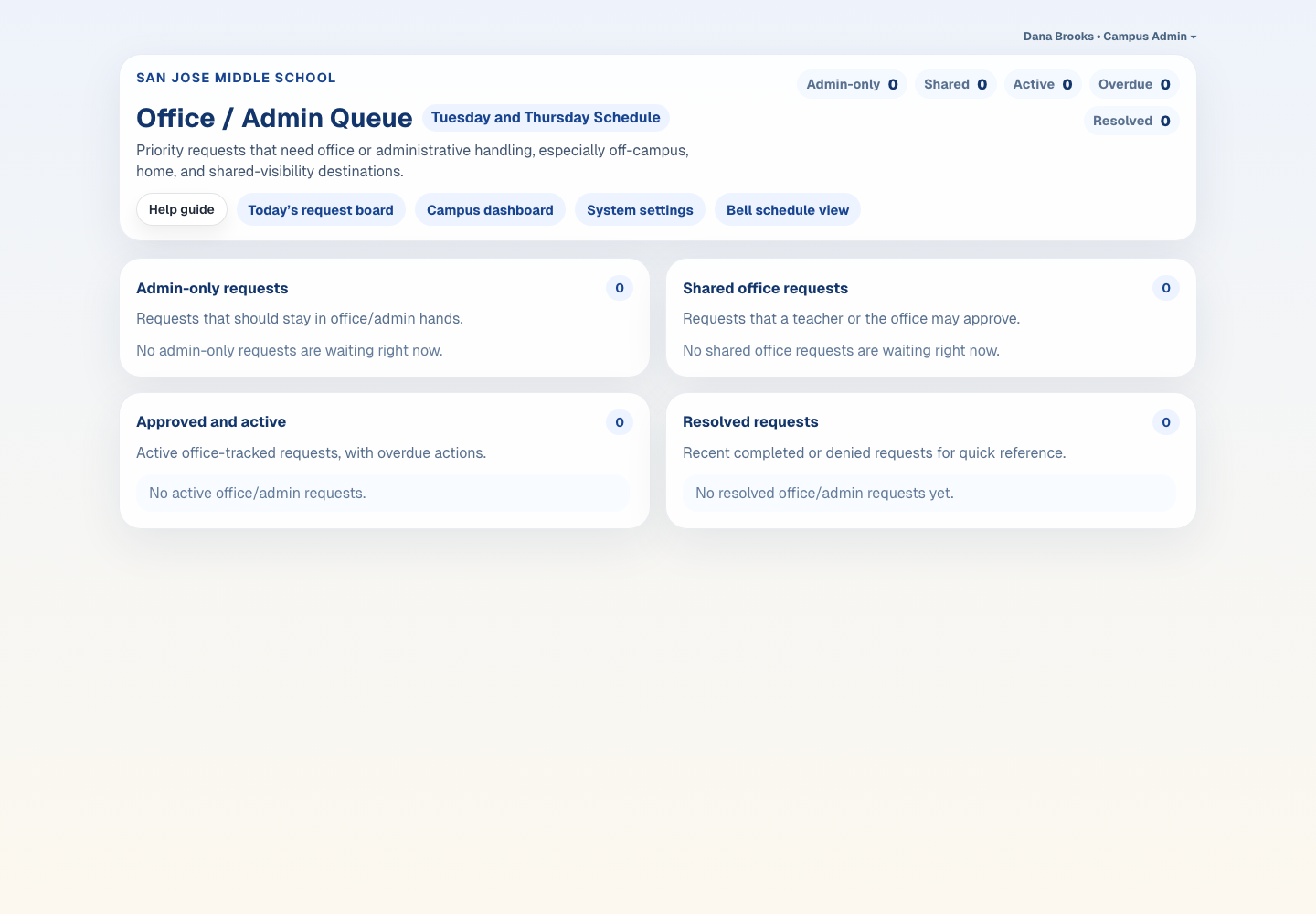
Use this page to work office-routed requests, monitor overdue movement, and clear stale open requests without deleting history.
Office / Admin Queue
Main actions
Review admin-only and shared office requests near the top.
Approve or deny requests that need office handling.
Acknowledge overdue active passes and resolve them when appropriate.
Clear prior-date queued or pending requests when they are no longer valid.
Clear prior-date active passes when staff have confirmed the pass is no longer live.
What to watch for
Same-day requests show time only; older open requests show time and date for cleanup clarity.
Stale clears are labeled Cleared without approval to preserve meaning.
Stale active-pass clears are labeled Cleared without return to distinguish cleanup from a normal return scan.
Emergency mode may block new requests but should not hide active or recently resolved movement records.
The full guide includes office/admin responsibilities, policy controls, and cleanup guidance.
Campus administrators and support staff
Campus Operations Dashboard
/campus/dashboard
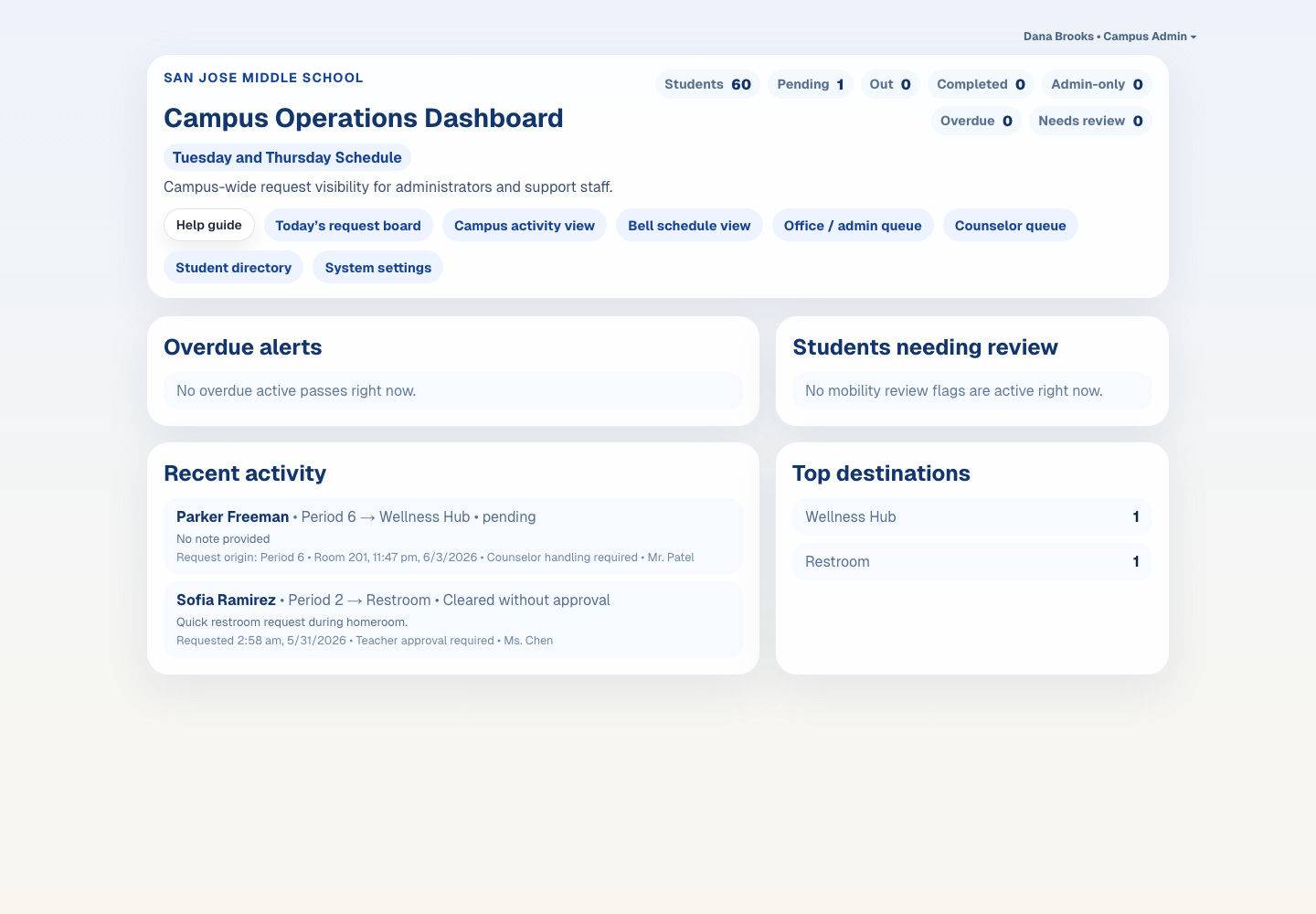
Use this page for campus-wide operational visibility, including overdue alerts, student mobility review flags, recent activity, and destination trends.
Campus Operations Dashboard
Main actions
Review overdue alerts first and acknowledge or resolve active passes when appropriate.
Check students needing review for high-frequency or missed-class patterns.
Scan recent activity and top destinations for operational bottlenecks.
Use System Settings and setup links when campus-level policy or configuration changes are needed.
What to watch for
Overdue alerts should preserve request origin, destination, timing, and approval context.
Student review flags are indicators for human follow-up, not automatic discipline decisions.
Emergency mode should remain visible without hiding active movement records.
The full guide explains how campus operations differs from the approval-focused office queue.
Campus supervisors
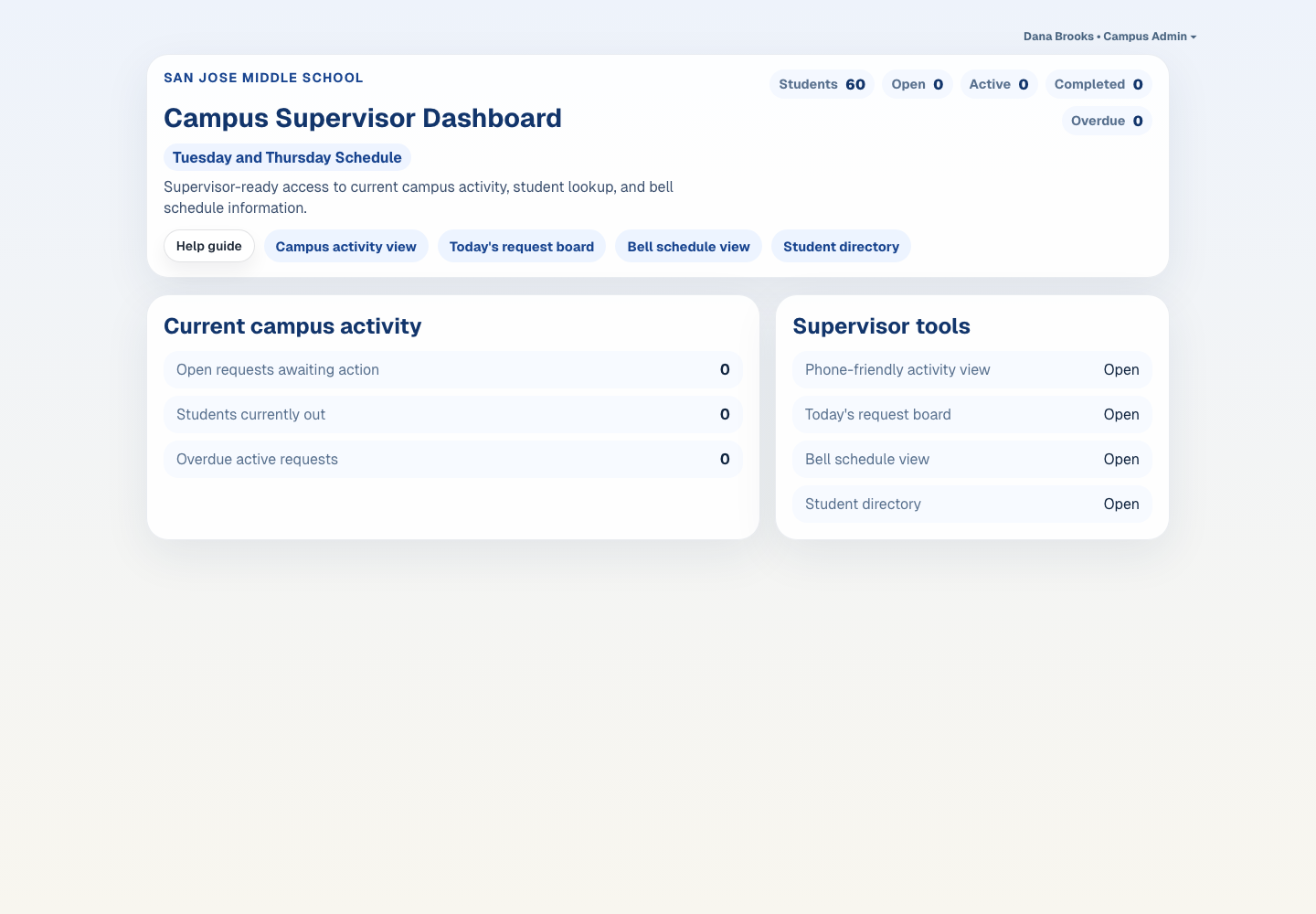
Campus Supervisor Dashboard
/campus/supervisor/dashboard
Use this page as the supervisor-safe entry point for movement visibility tools without exposing office/admin approval queues or system settings.
Campus Supervisor Dashboard
Main actions
Open the Help Guide when orienting to the system.
Open Campus Activity View for live movement visibility.
Open Today’s Requests for the current request board.
Open the Bell Schedule view or Student Directory when needed.
What to watch for
Campus supervisors should not have access to office/admin queues, counselor queues, or system settings.
This dashboard is intentionally operational and view-focused.
Student Directory access is available so supervisors can identify students during movement checks.
The full guide explains the difference between supervisor visibility and office/admin authority.
Campus supervisors, office staff, and campus administrators
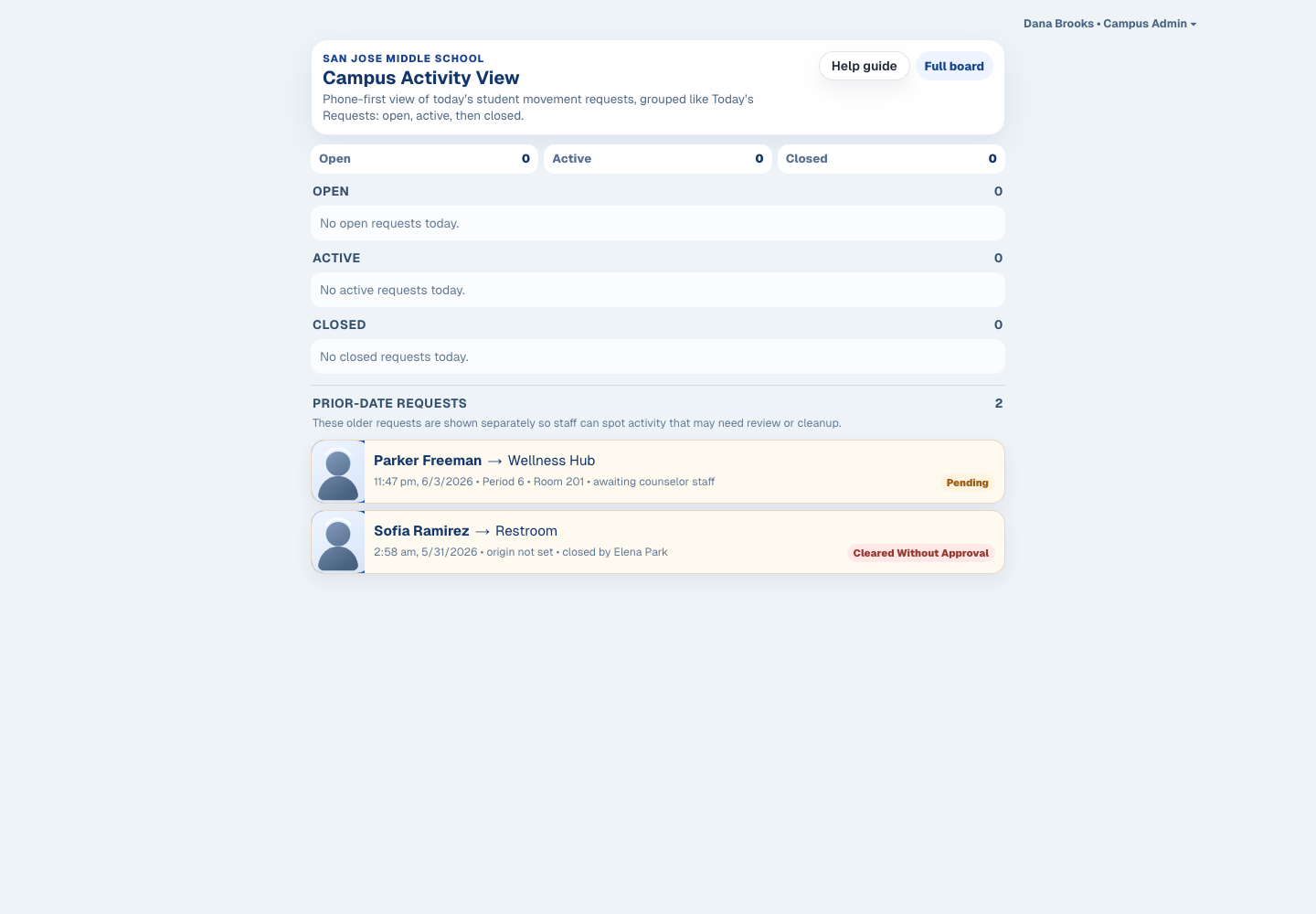
Campus Activity View
/campus/supervisor
Use this page for live campus movement visibility, including active, closed, and prior-date unresolved requests that may need follow-up.
Campus Activity View
Main actions
Review current active and open movement records.
Scan closed requests for recent activity context.
Check prior-date unresolved requests when cleanup or staff follow-up is needed.
What to watch for
This view is for visibility and follow-up, not system configuration.
Prior-date unresolved requests should remain visible until staff resolve or clear them appropriately.
Campus supervisors can use this view without receiving system-settings authority.
The full guide explains how this view complements Today’s Requests and the Office / Admin Queue.
Office staff, campus administrators, and campus supervisors
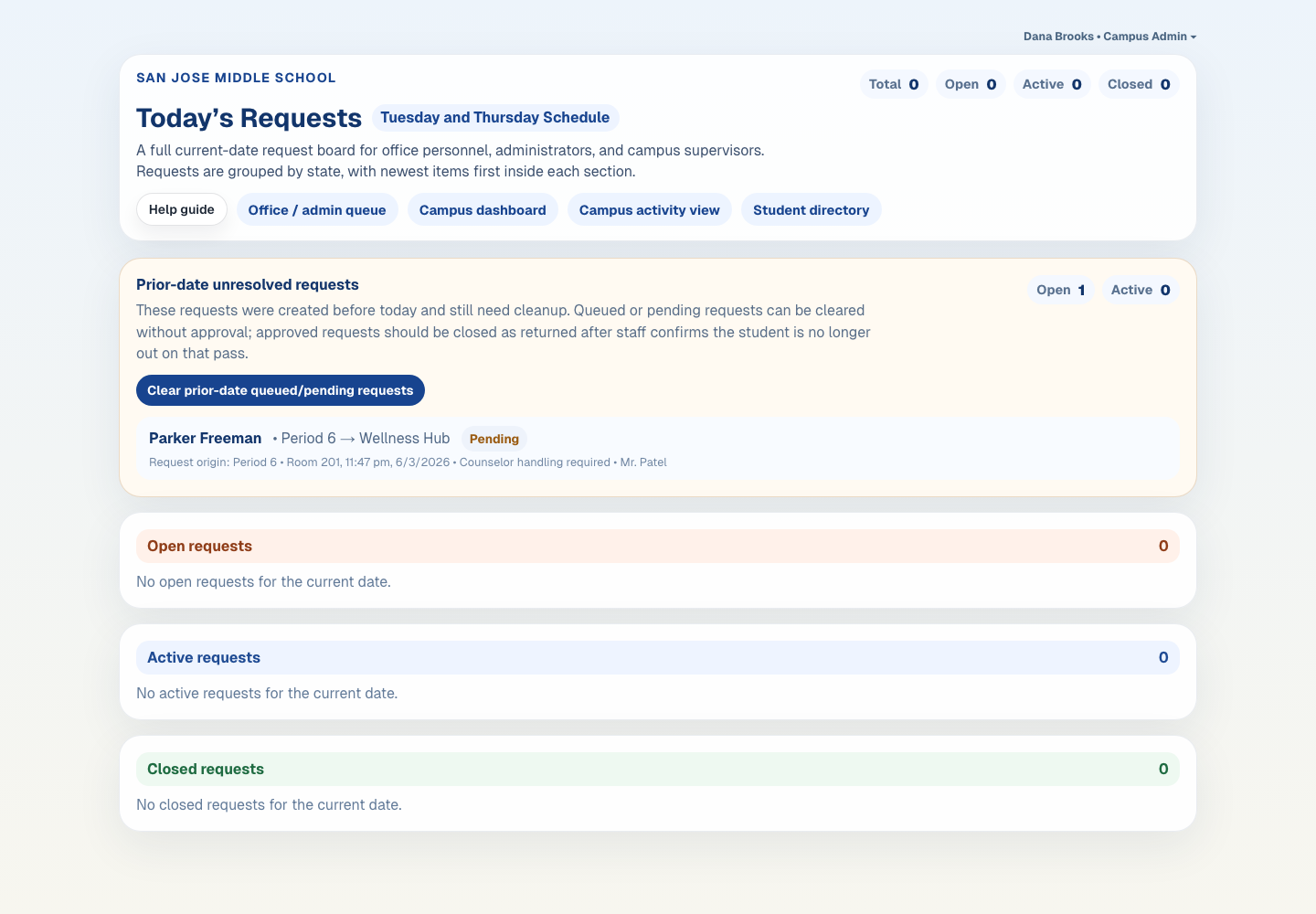
Today’s Requests
/campus/requests
Use this page as the campus-wide current-date request board, grouped into open, active, and closed sections.
Today’s Requests
Main actions
Scan open requests first, then active requests, then closed requests.
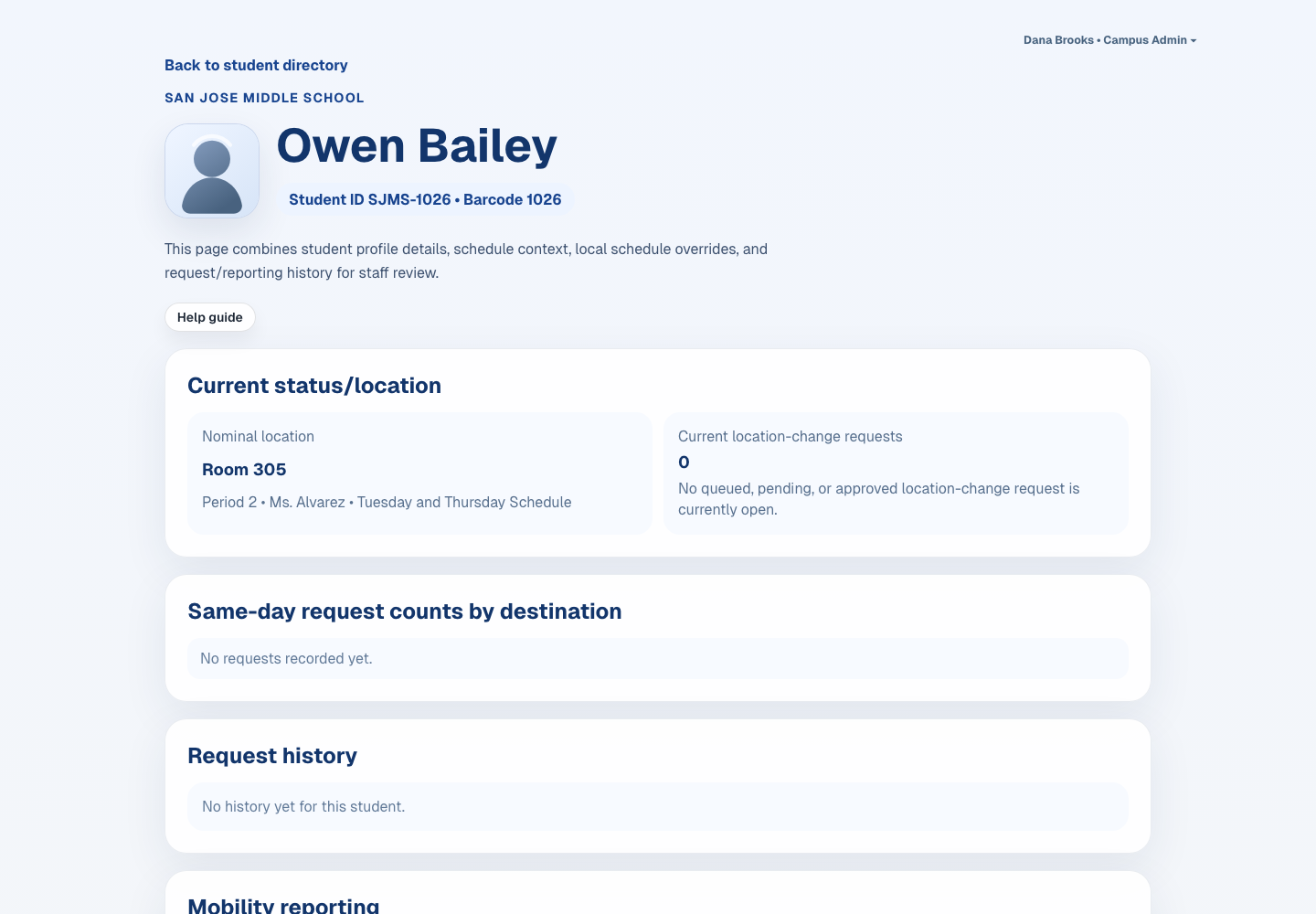
Use student-name links to open student profiles in a new tab.
Watch for overdue active requests and unresolved bottlenecks.
What to watch for
This page is for broad operations visibility, not just approval work.
Older stale open requests are better cleared from the office queue.
The full guide explains how this board complements the office queue and campus dashboard.
Counselors and authorized support staff
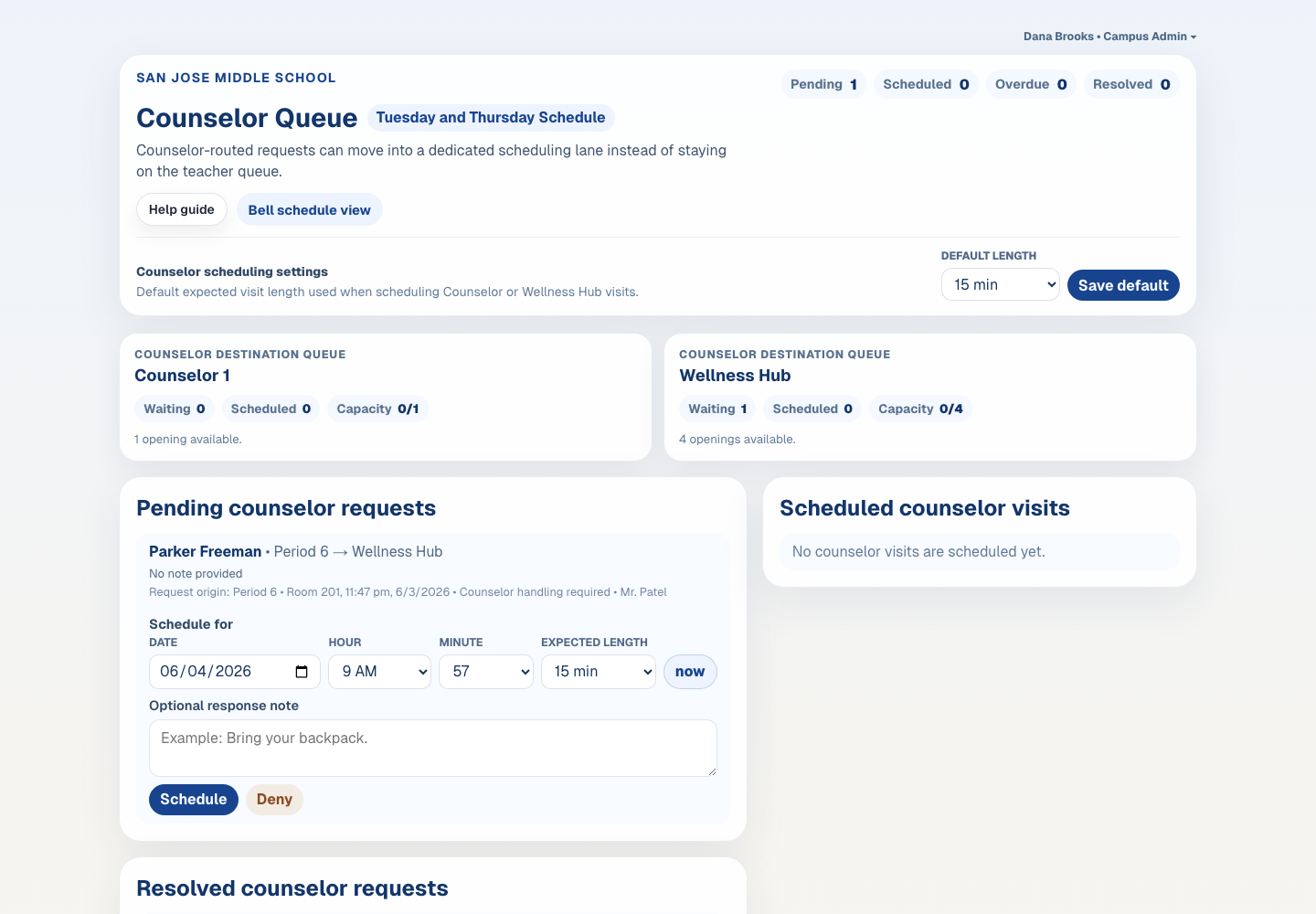
Counselor Queue
/counselor/queue
Use this page to schedule, deny, acknowledge, and resolve counselor-routed location-change requests without mixing them into the teacher approval workflow.
Counselor Queue
Main actions
Review pending counselor requests and schedule visits when appropriate.
Choose the scheduled date, time, and expected visit length before scheduling.
Add a short optional response note when scheduling or denying a request.
Set the default expected visit length from Counselor scheduling settings when the usual appointment length changes.
Deny requests that should not move forward.
Monitor scheduled counselor visits and resolve them after completion.
Use the same compact request details as other queues to preserve request origin and approval context.
What to watch for
Counselor-routed requests may be intentionally scheduled for a later time.
The selected expected visit length is stored on the scheduled request and used for overdue timing.
Optional counselor response notes are preserved in the request event history for later visibility decisions.
The counselor default visit length is managed on this queue, separately from office/admin System Settings.
Queued requests are waiting for destination capacity rather than approval.
Older resolved requests remain visible for short-term reference.
The full guide includes counselor scheduling norms and when requests should be routed to counseling.
Front office staff and campus administrators
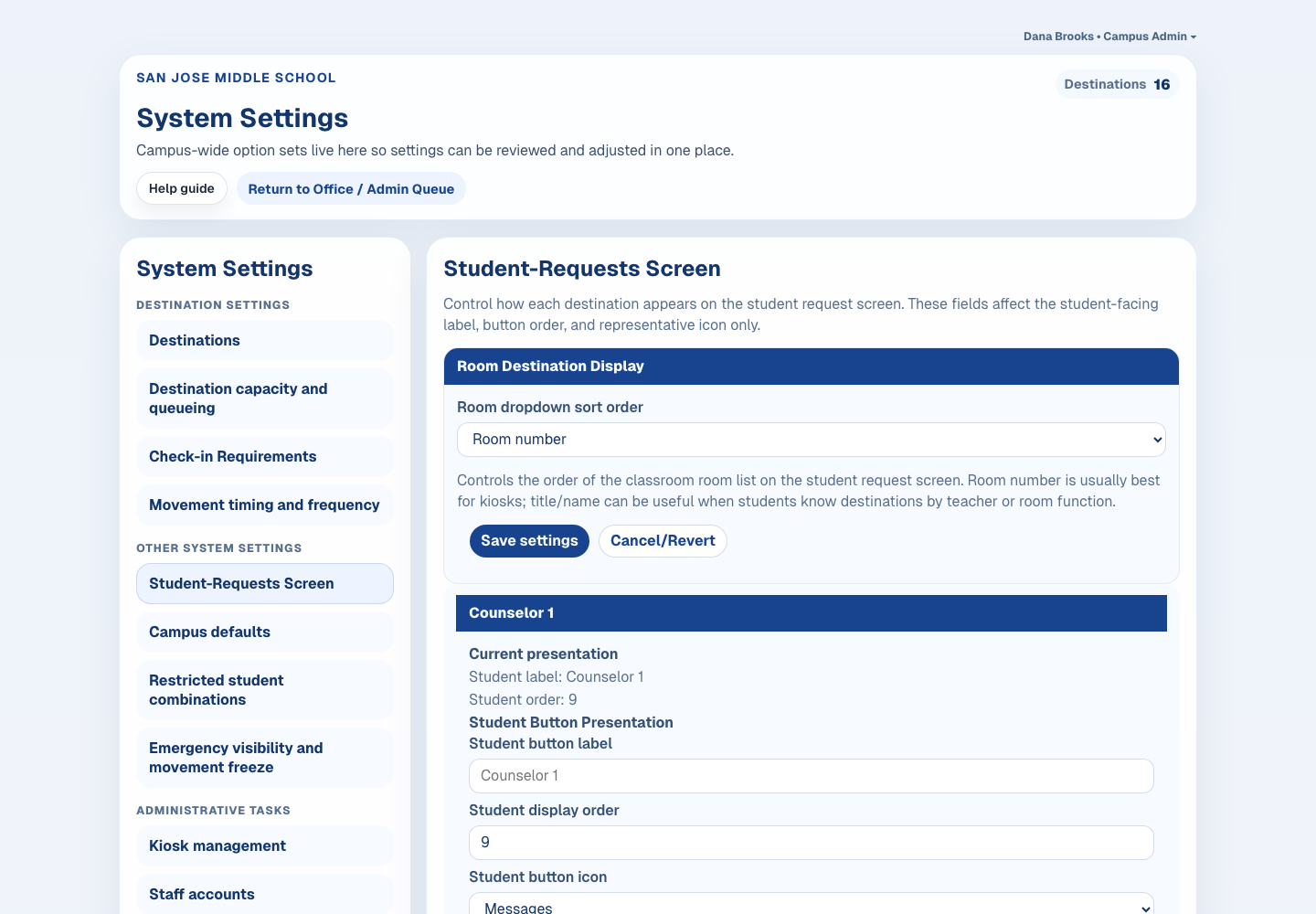
System Settings
/campus/settings
Use this page to manage campus-wide policy controls, destination rules, and emergency behavior from one settings surface.
System Settings
Main actions
Choose an option set from the left-side list.
Use the dark section headers inside each pane to scan related settings before editing.
Adjust campus defaults, arrival check-in, return check-in, destination queueing, campus-wide active-pass limits, movement timing, restricted combinations, and emergency mode.
Open Student-Requests Screen to choose whether room destinations sort by room number or by room title / teacher name.
Save each option set after changes.
What to watch for
These controls shape live request behavior, so changes should be deliberate.
No-fly timing can work from bell schedules or from fixed clock-time fallback windows when bell schedules are incomplete.
Room number sorting is usually clearest for kiosk devices; room title / teacher-name sorting may be better when students identify classrooms by staff member or room function.
Only office/admin roles should modify these settings.
The full guide includes policy-setting examples and pilot recommendations for each option set.
Front office staff and campus administrators
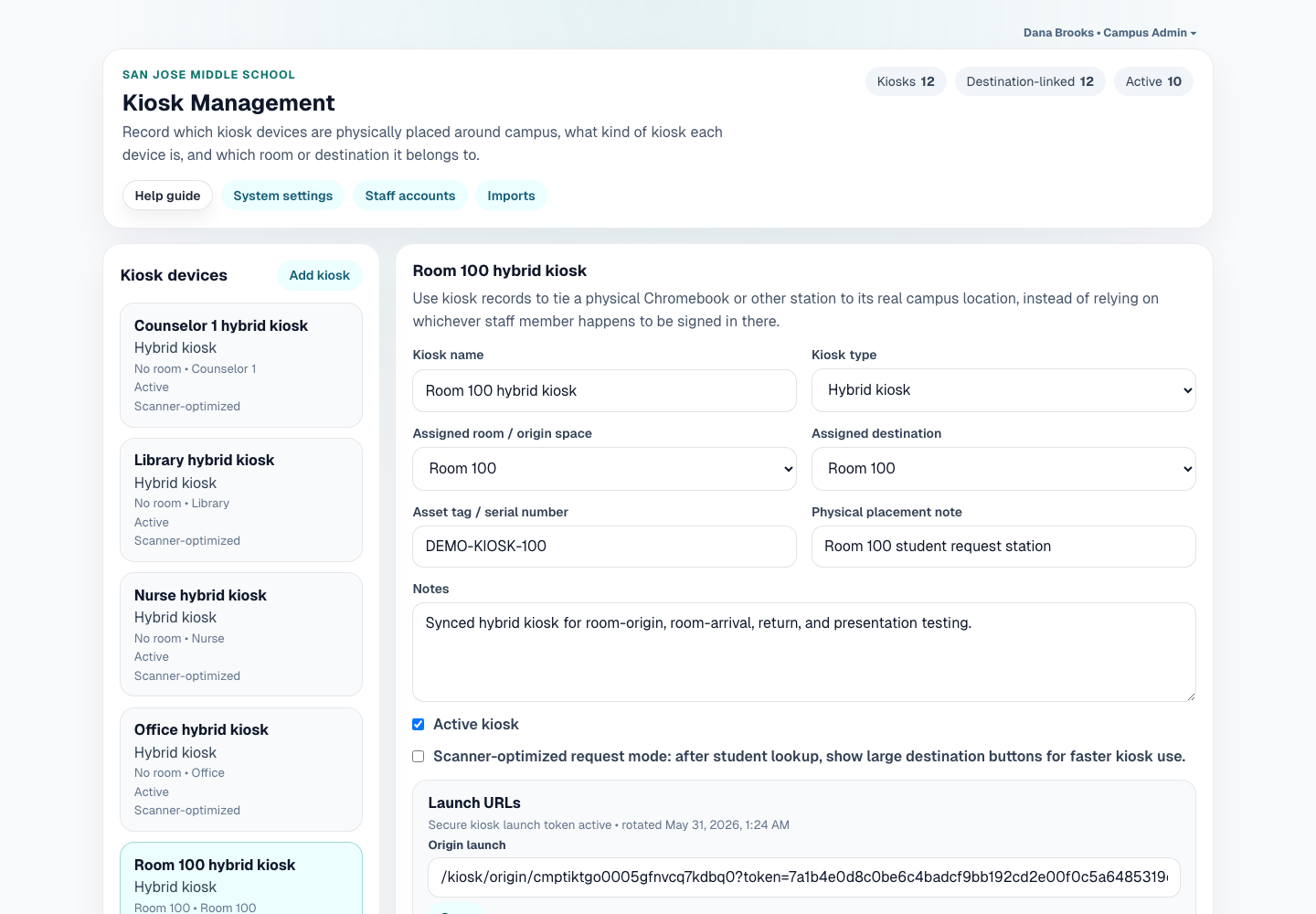
Kiosk Management
/campus/settings/kiosks
Use this page to record the physical placement and launch behavior of kiosk devices so kiosks are tied to real campus locations instead of whichever user is signed in there.
Kiosk Management
Main actions
Create or update kiosk records.
Choose whether a kiosk is origin, destination, or hybrid.
Assign the room/origin space and destination when applicable.
Enable scanner-optimized request mode when the device has an ID-card scanner and should show large destination buttons.
Use the launch URLs to open the correct kiosk route on the device.
Use origin or hybrid kiosks to record required student return check-ins.
Use destination or hybrid kiosks to record required arrivals at locations such as classrooms, the library, office, nurse, or counseling spaces.
Mark kiosk placement as verified after setup.
What to watch for
Most kiosk locations should be configured as hybrid so they can act as both the starting point and the arrival point for a location change.
Classroom kiosks should be linked to the room and the corresponding classroom destination.
Library, office, nurse, and counselor kiosks should be linked to their corresponding destination.
Scanner-optimized mode still requires a final submit click by default to prevent accidental destination records.
The full guide includes a step-by-step kiosk setup and verification checklist.
Front office staff and campus administrators
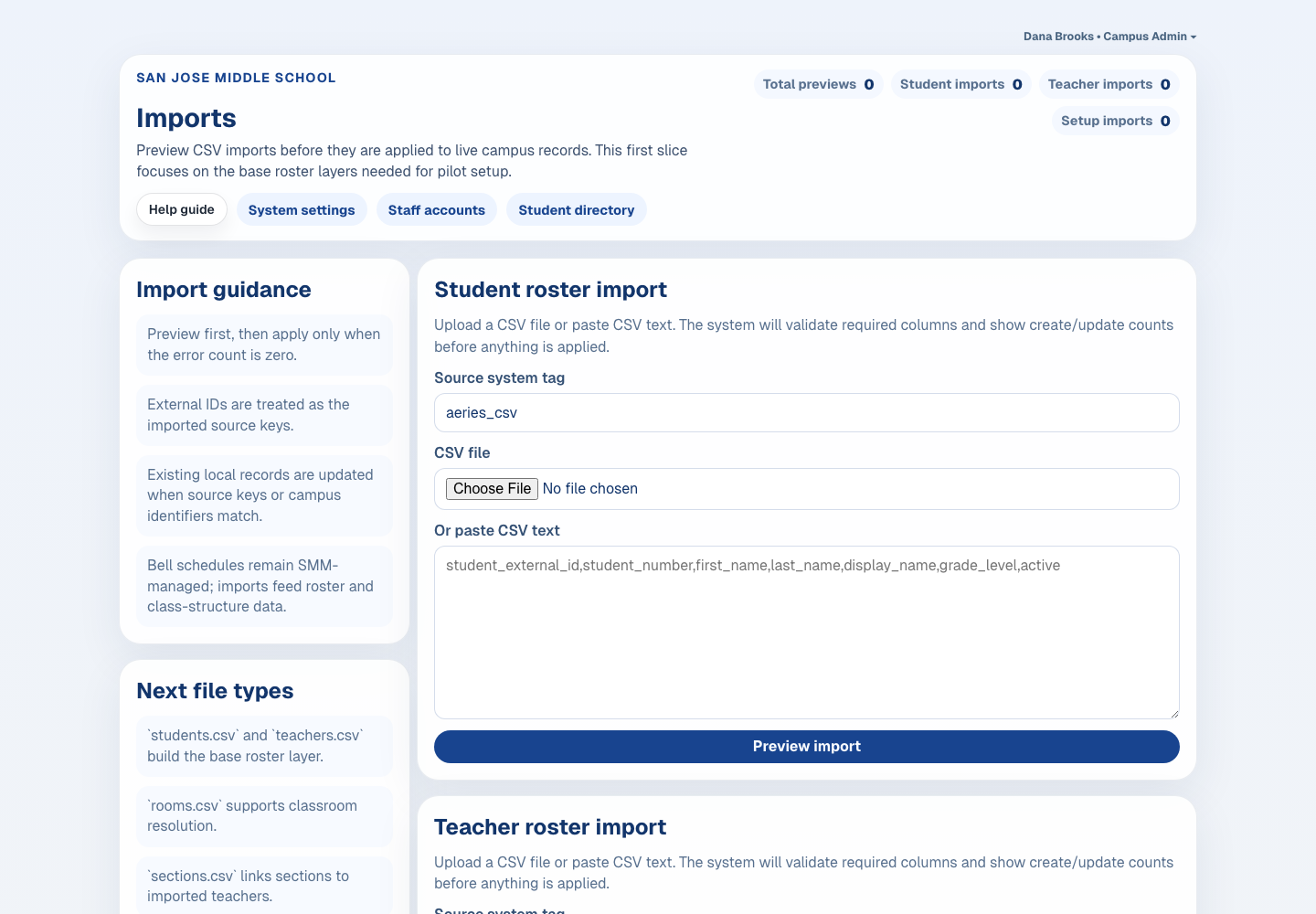
Imports
/campus/settings/imports
Use this page to preview imported CSV data before applying it to live campus roster and class-structure records.
Imports
Main actions
Choose the import type and identify the source system.
Upload a CSV or paste CSV text.
Review create, update, warning, and error counts.
Apply only previews that have acceptable results.
What to watch for
Preview first and apply only when the error count is zero.
External IDs act as the imported source keys.
Bell schedules remain SMM-managed even when roster and structure data are imported.
The full guide includes per-file examples and reconciliation notes for pilot setup.
Front office staff and campus administrators
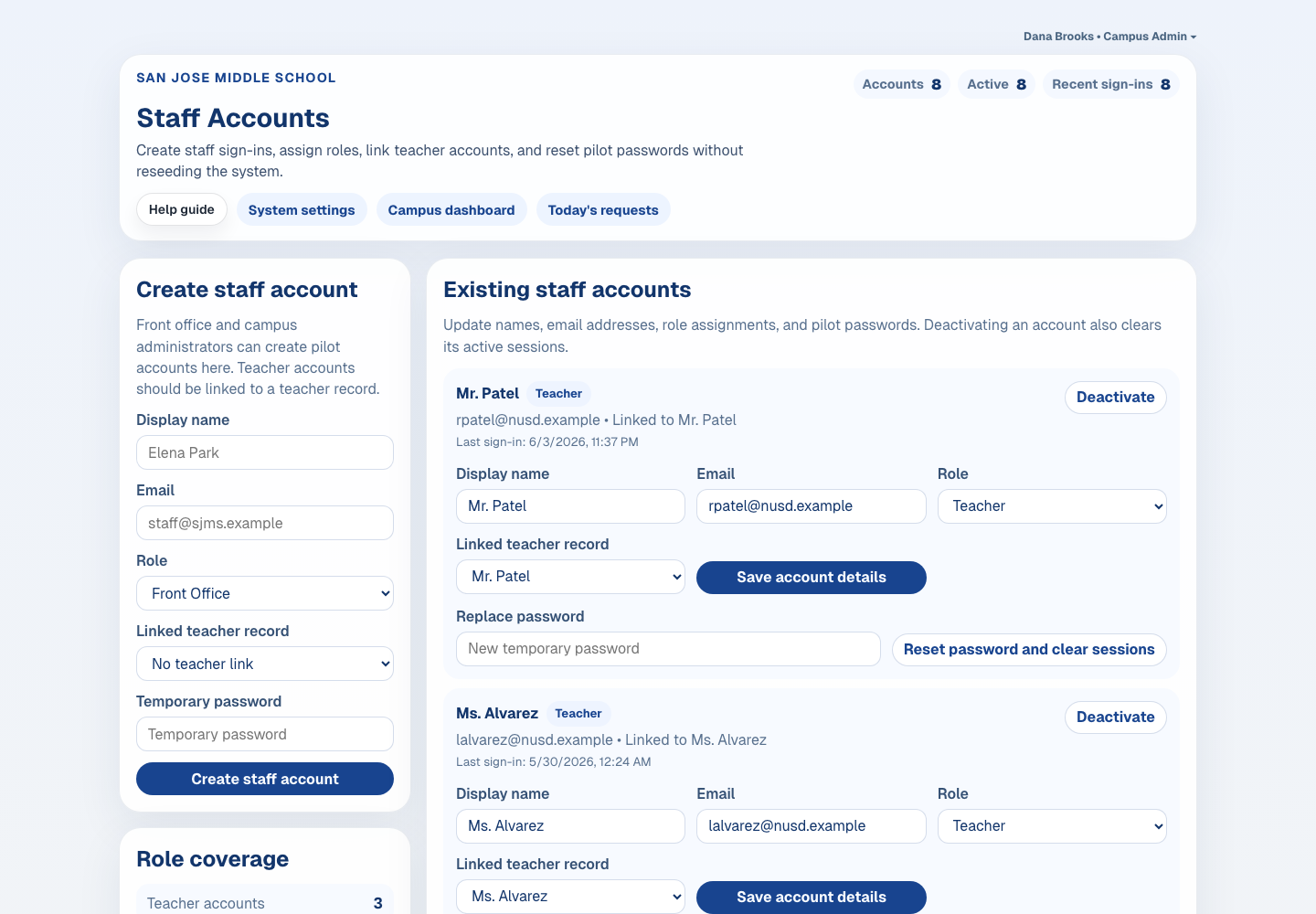
Staff Accounts
/campus/settings/staff
Use this page to create, update, deactivate, and reset pilot staff sign-ins without reseeding the system.
Staff Accounts
Main actions
Create new staff accounts with the correct role.
Link teacher accounts to teacher records when appropriate.
Update display names, email addresses, and roles.
Reset passwords or deactivate accounts when needed.
What to watch for
Teacher-role accounts should usually be linked to a teacher record.
Deactivating an account should end its active sessions.
Only office/admin roles should manage staff accounts.
The full guide includes pilot password-handling guidance and later SSO transition notes.
Office staff, campus administrators, and view-only support roles
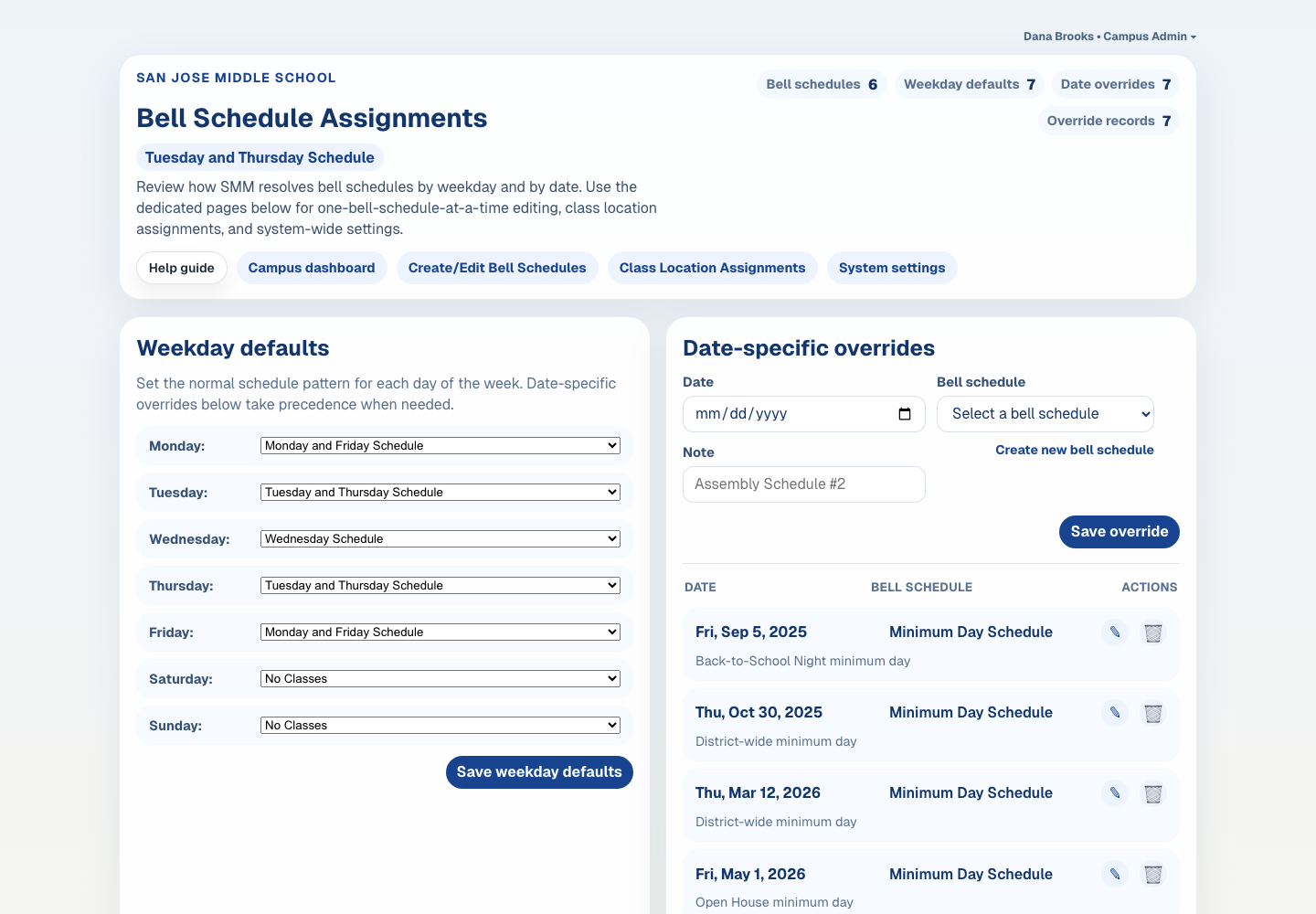
Bell Schedule Assignments
/campus/schedules
Use this page to assign default bell schedules by weekday and set date-specific overrides that determine which bell schedule applies on a given day.
Bell Schedule Assignments
Main actions
Set weekday default bell schedules.
Create date-specific override assignments when a special day is needed.
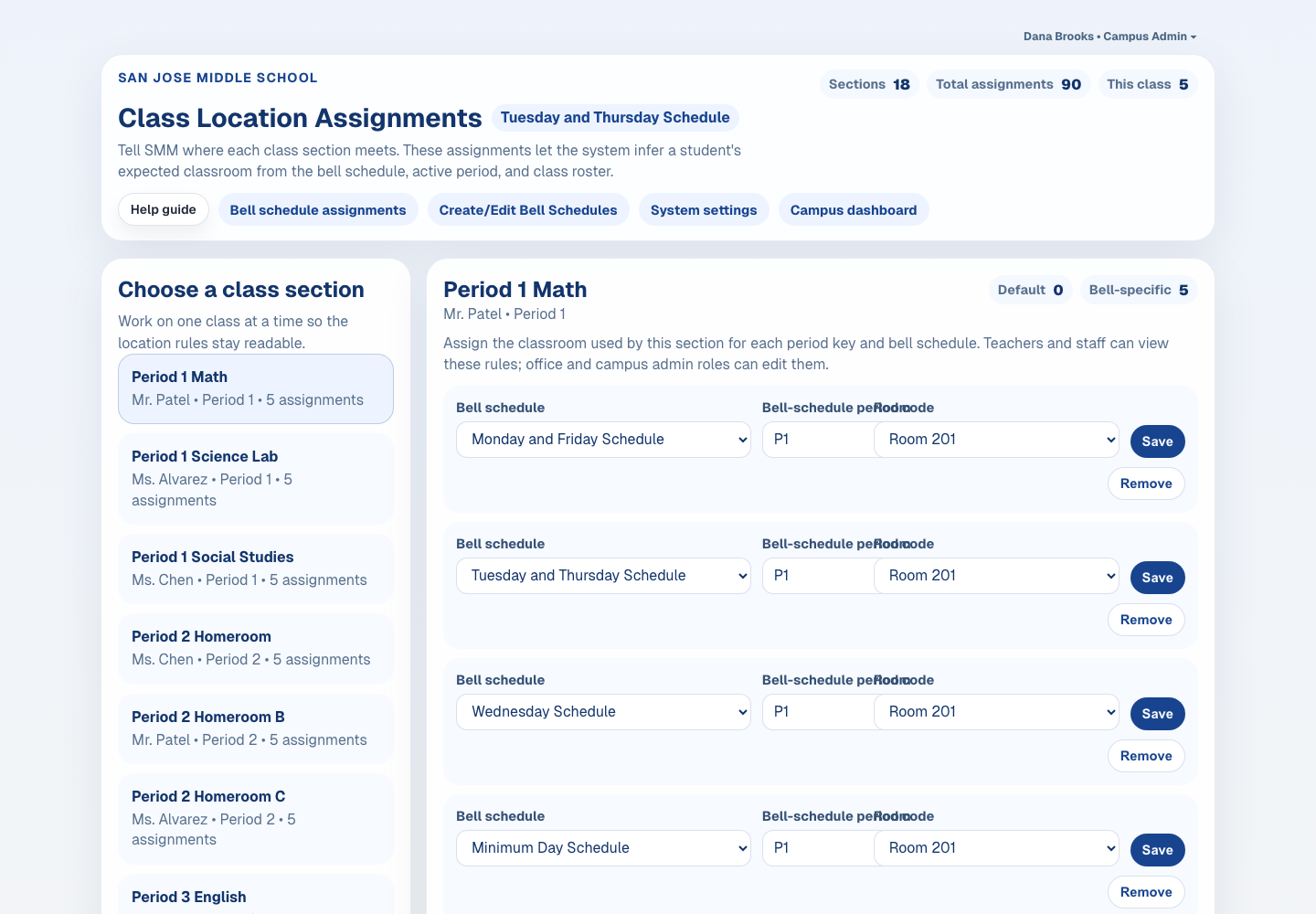
Use the linked Bell Schedules and Class Location Assignments pages for deeper editing.
What to watch for
Weekday defaults are the baseline; date-specific overrides take precedence.
No Classes is a valid default for weekends or non-instructional dates.
This page assigns schedules; it does not replace the separate bell-schedule editor.
The full guide explains how bell schedule assignments, bell schedule editing, and class location assignments work together.
Office staff, campus administrators, and view-only support roles
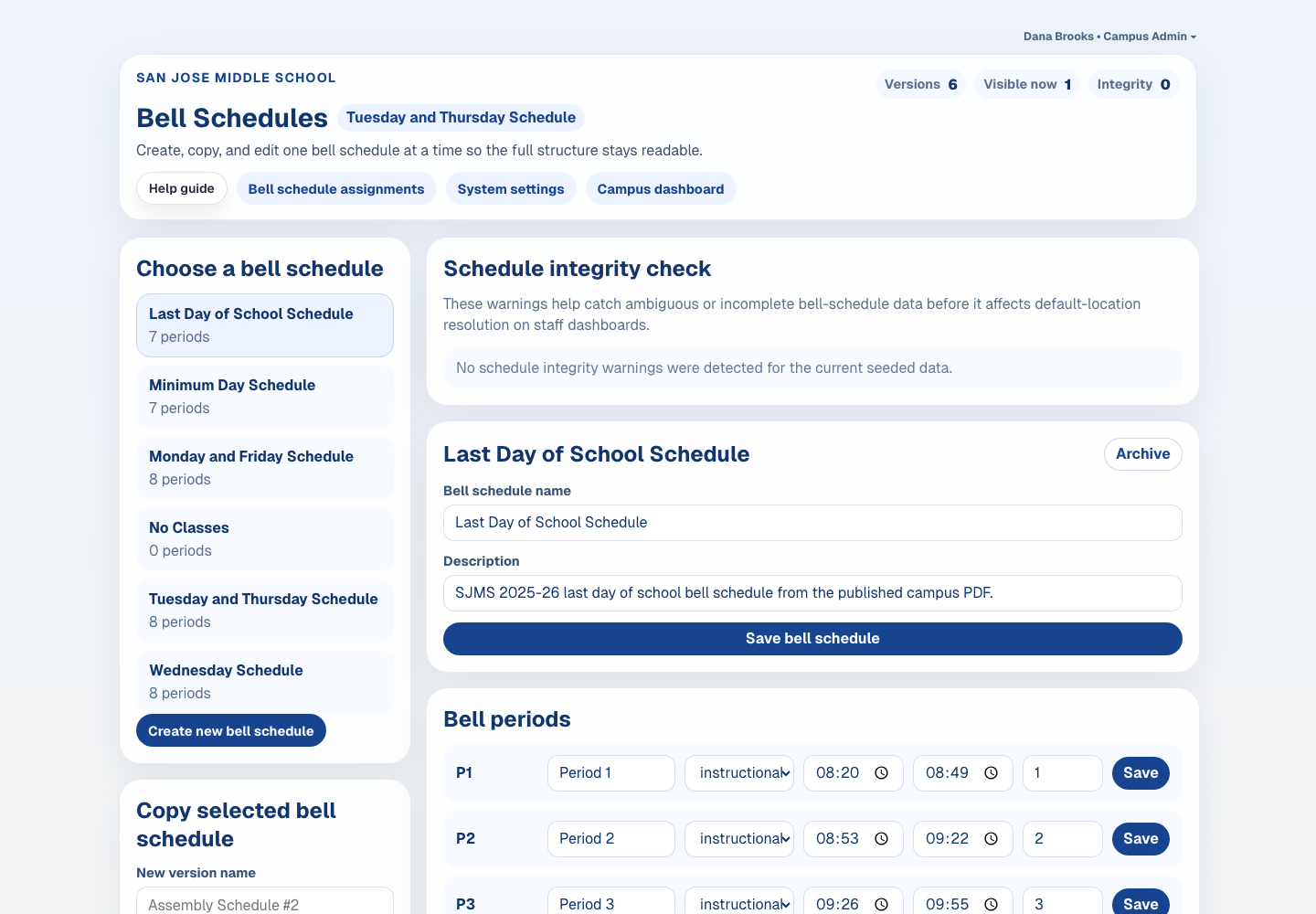
Bell Schedules
/campus/schedules/versions
Use this page to create, copy, and edit one bell schedule at a time so schedule-version details stay readable.
Bell Schedules
Main actions
Choose a bell schedule from the list.
Create a new bell schedule or copy an existing one.
Edit periods, names, and descriptions one version at a time.